Text Flight Numbers to People You’re Visiting So They Can Track Your Flight

Next time you’re flying to visit your Apple-using family or friends, send them your flight number using Messages when you leave. Then they can easily track your flight in the air and see when you’re arriving. Just text them the flight number prefixed with the airline’s abbreviation, like AA for American Airlines, AC for Air Canada, BA for British Air, DL for Delta, or UA for United Airlines. If Messages recognizes the flight number, it will underline it to indicate that tapping or clicking will bring up the current flight information. This feature also helps you extract more information from a texted flight status update that an airline sends to you. If you know a flight number but don’t have it in Messages, you can get the same information on the Mac using Spotlight (press Command-Space). On an iPhone or iPad, use the Search feature (pull down on the Home screen).

(Featured image by iStock.com/SamAntonioPhotography)

Share Airline Boarding Passes Using Wallet and AirDrop

It’s common for one person in a family to handle booking airline tickets and thus to be in charge of checking in for the flight online and downloading boarding passes. If that’s you, what’s the best way to send each iPhone-wielding person in your family their own boarding pass? Rather than tussle with sharing the check-in confirmation email, add all the family boarding passes to Wallet on your iPhone. Then, for each person’s boarding pass, tap the ••• button ➊, tap Pass Details ➋, tap the share icon in the upper-right corner ➌, and share the pass via AirDrop or any other standard method. When the person receives it, they’ll be prompted to add the pass to their Wallet app.

(Featured image by iStock.com/IPGGutenbergUKLtd)

watchOS 9’s New Low Power Mode Could Help Older Apple Watches

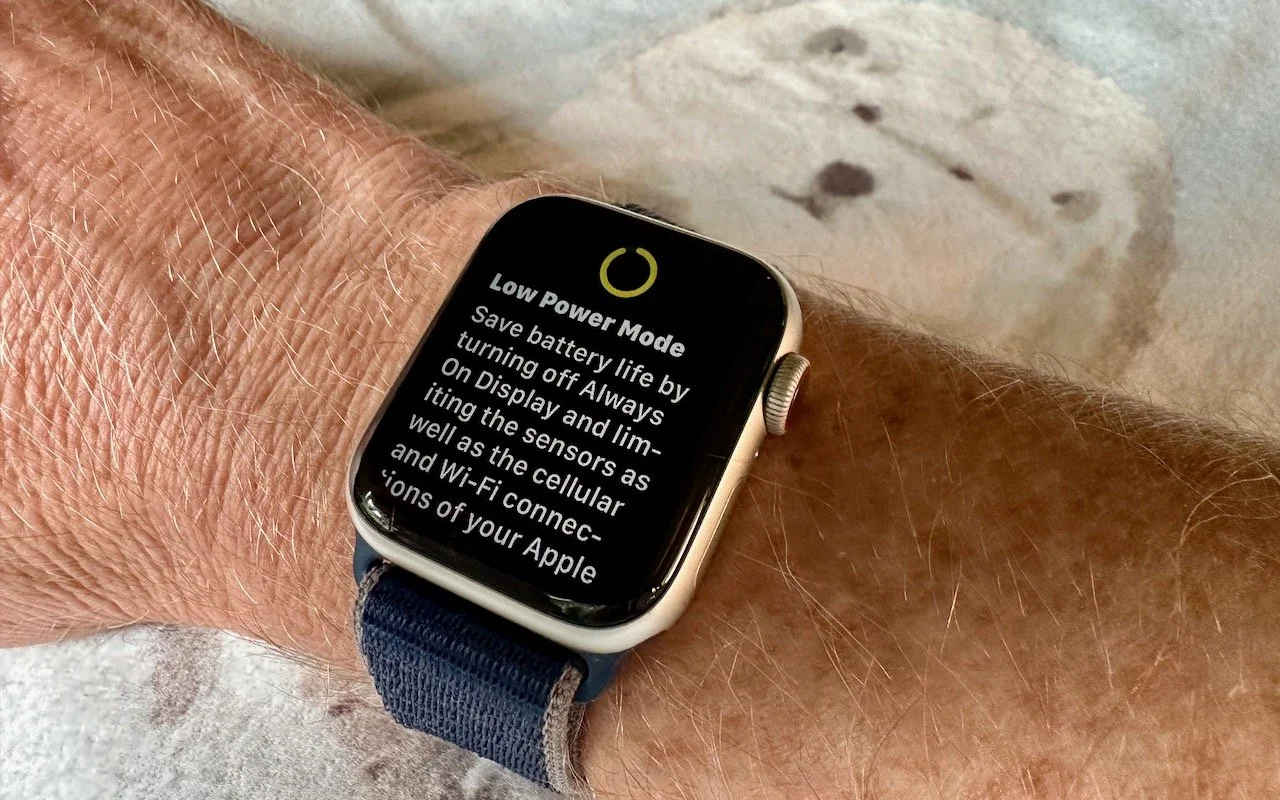
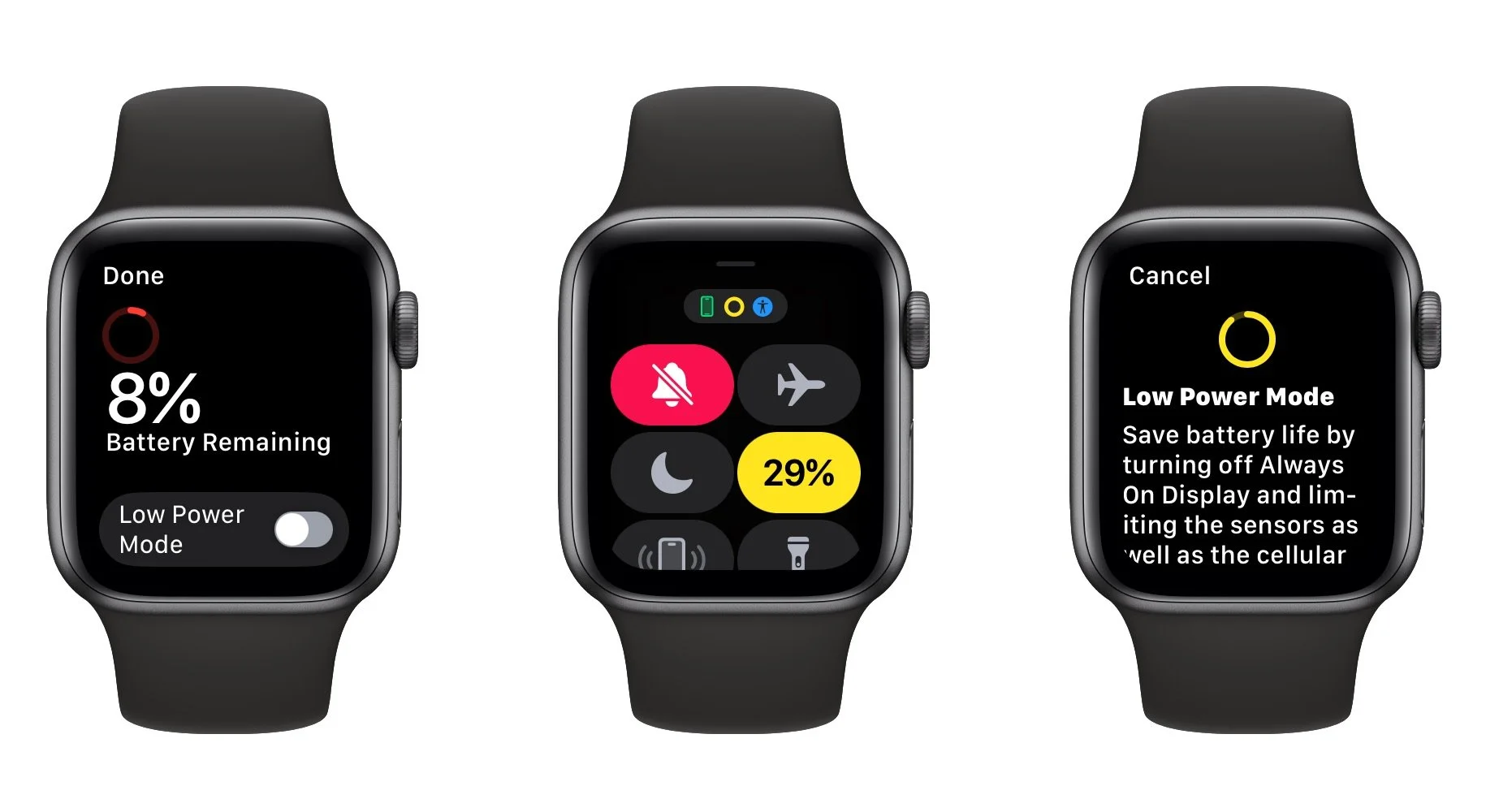
Until watchOS 9, Low Power Mode on the Apple Watch turned the smartwatch into a dumb watch that only told the time. With watchOS 9 on an Apple Watch Series 4 or later, however, a new Low Power Mode reduces the watch’s capabilities while keeping it largely functional. It turns off the Always-On display, heart rate notifications, background heart rate and blood oxygen measurements, and the automatic start workout reminder. When your iPhone isn’t nearby, it disables Wi-Fi and cellular connections and incoming phone calls and notifications. Other features will be slower: making a phone call, refreshing background apps and complications, Siri requests, and some interface interactions. (You can still use the Workout app in Low Power Mode and record metrics like heart rate and pace. Go to Settings > Workout on the Apple Watch to turn Low Power Mode on automatically whenever you start a workout.) watchOS 9 prompts you to turn on Low Power Mode when your battery drops to 10%, or you can enable it manually by swiping up from the bottom of the screen to open Control Center, tapping the battery percentage button, and enabling the option.

(Featured image by Adam Engst)

Bring Back the Battery Percentage Indicator in iOS 16

Back in 2017, when Apple added the notch to the iPhone X for Face ID, the resulting loss of usable screen real estate caused the company to remove the battery percentage indicator from the status area. Since then, you’ve only been able to estimate how much battery life you had left from the icon; you had to open Control Center to see the numeric percentage. In iOS 16, however, Apple has revived the battery percentage indicator for Face ID iPhones, building it into the battery icon itself so it doesn’t occupy more of the status bar. Unfortunately, it’s not available on the iPhone XR, iPhone 11, iPhone 12 mini, or iPhone 13 mini, perhaps due to a lack of sufficient screen resolution. Everyone else can enable it in Settings > Battery.

(Featured image by Adam Engst)

Add Haptic Feedback to the iPhone Keyboard in iOS 16

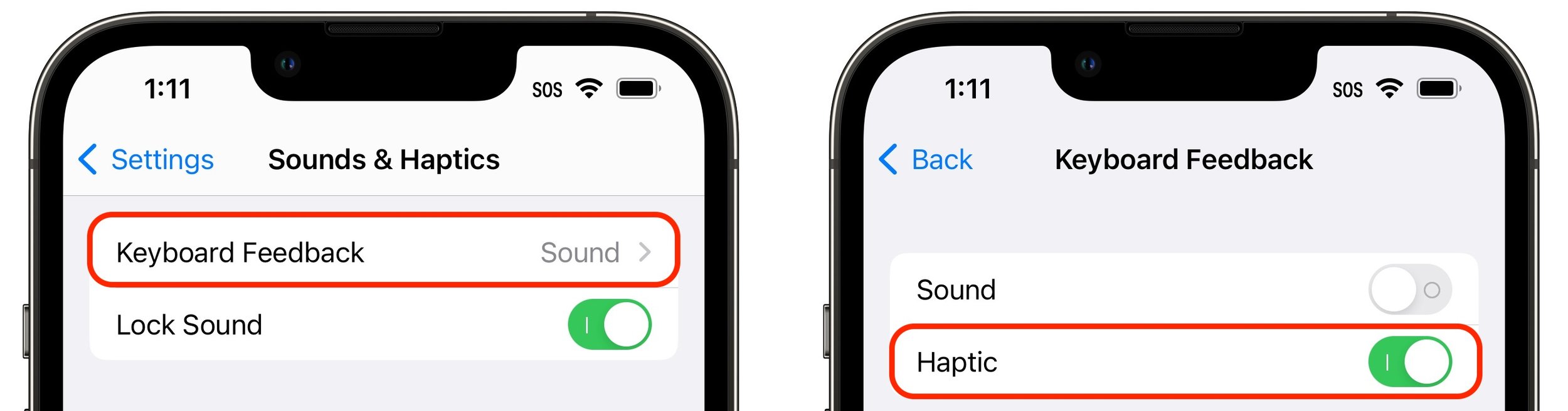
The iPhone has long been able to play clicking sounds when you tap the keys on the virtual keyboard, but that feedback, while sometimes welcome, can become annoying when you’re trying to be quiet. A new feature in iOS 16 provides haptic feed-back—tiny taps you can feel in your fingertips as you tap keys on the keyboard. It’s a subtle but highly effective way of mimicking a real keyboard, and we encourage you to try it. Turn the feature on in Settings > Sounds & Haptics > Keyboard Feedback. (While you’re there, try turning off Sound; it may no longer be necessary.)

(Featured image by iStock.com/Yosi Azwan)

Are You Paying Too Much for Internet or Cellular Connectivity?

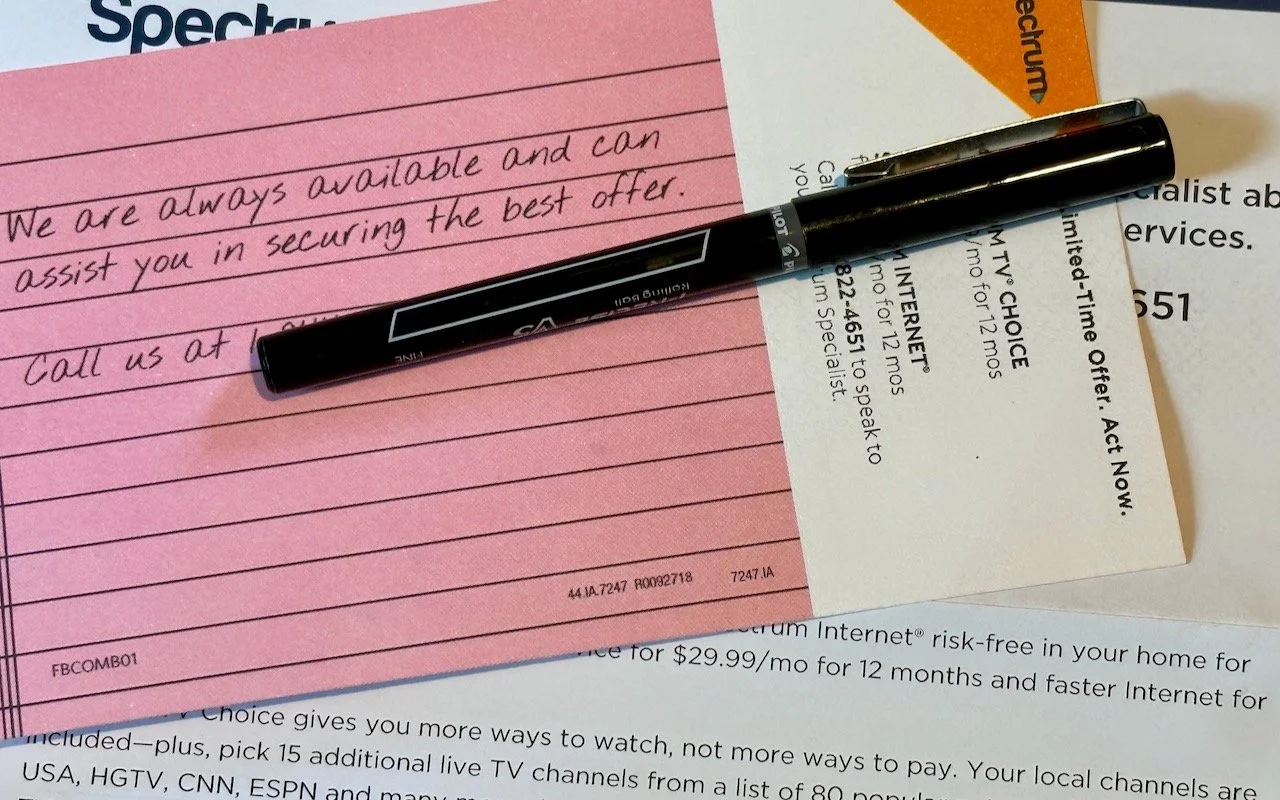
We’ve recently worked with a few clients who were paying too much for their Internet or cellular service. Internet service providers (ISPs) and cellular carriers occasionally adjust their service plans to account for new technologies, economies of scale, changing competitive landscapes, and marketing efforts. Sometimes they’ll increase speeds or capabilities across the board, but more often, when they debut new plans, current customers are grandfathered into their existing plans, often without notification. Upgrading to a new, better plan is usually simple—first, check the plan details on your ISP’s or cellular carrier’s website. Then, if they look better or cheaper—or if you don’t remember what service levels you should be getting—call the company’s support line and ask if switching plans would be beneficial. Beware that they may try to upsell you on a more expensive plan, so agree to switch only if you’ll end up paying less or getting significantly more. Remember, more speed isn’t necessarily worthwhile—most people won’t notice the difference between 250 Mbps and 1 Gbps, for instance.

(Featured image by Adam Engst)

Photos Library Showing Blank Thumbnails or Having Other Issues? Try This Trick to Repair It

The Photos app is usually a solid performer, but it does rely on a database behind the scenes, and corruption is a possibility. If you find that your Photos library is showing blank thumbnails or otherwise acting oddly, see if the Photos Repair Library tool can fix it. First, if Photos is open, quit it. Then launch Photos again while holding down the Command and Option keys at the same time. In the window that appears, click Repair. The tool might ask for your account password, and depending on the size of your library, the repair could take some time, so don’t interrupt it. If that doesn’t fix the problem, contact us—if all else fails, we can help you recover your original photos from within the Photos Library file.

(Featured image by iStock.com/fizkes)

Remove Old-Style Today View Widgets from Your iPhone

In iOS 14, Apple overhauled widgets, allowing you to add them to your Home screen in addition to the Today View accessible by swiping right on the Home screen. App developers responded with a slew of new widgets, but old-style widgets that are limited to Today View remain available. If you no longer want these older widgets cluttering the bottom of your Today View, here’s how to remove them. Swipe right on the Home screen to enter Today View. At the bottom of Today View, tap the Edit button, and at the bottom of the collection of old-style widgets (new-style widgets wiggle), tap Customize. In the Add Widgets screen, tap the red ⊖ button next to each widget you want to delete and confirm by tapping Remove.

(Featured image by Adam Engst)