Use Visual Look Up in Photos in iOS 15 to Identify Plants, Pets, and More

Have you ever wanted to identify a plant, flower, or pet breed, or find out what that famous painting is called? Us too. In iOS 15 and iPadOS 15, Apple added a new AI-driven feature called Visual Look Up that provides more information about photos of plants, flowers, pets, books, artworks, and landmarks. When you’re viewing a photo, swipe up or tap the sparkle-badged info button ➊ to see metadata about the image (camera model, image details, location, and more) and then tap Look Up to learn more ➋. Depending on the item recognized, it will suggest Wikipedia articles, similar images from the Web, websites, bookstores, map locations, and more. Tap a suggestion to switch to Safari or another app for details. (If the info button doesn’t have the sparkle badge, Visual Look Up hasn’t identified anything in the photo.)

(Featured image by iStock.com/Hakase_)

Apple Provides Temporary iCloud Backup Space for New Device Transfers

When you move from an old iPhone or iPad to a new one, the easiest approach is often the Quick Start device-to-device transfer. But if that doesn’t work, or if you have to give up one device before receiving the other, iCloud Backup is a fine alternative. Fine, that is, if you have enough iCloud storage space, which many people with the free 5 GB plan do not. For devices running iOS 15 or iPadOS 15, Apple just introduced the option to create a temporary iCloud backup that’s larger than the available space. Tap Settings > General > Transfer or Reset Device > Get Started to create the backup. You have 21 days (plus another 21 if necessary) to restore that backup, and it sticks around for another 7 days after you restore.

(Featured image by iStock.com/honley)

Safari 15.1 Reverses Course, Reverts to Old Tab Interface

With the betas of Safari 15 on the Mac and iPad, Apple experimented with a variety of interface tweaks related to tabs. By the time Safari 15 shipped, however, Apple had pulled back on the more radical changes from the betas, offering the new Compact Tab Bar layout and colorized tab bar as options. Even with the more traditional Separate Tab Bar layout, however, tabs appeared as buttons above your favorites, a switch from earlier versions of Safari. With Safari 15.1 in macOS and iPadOS 15.1, Apple has reverted the Separate Tab Bar layout even further, making the tabs look like, well, tabs, moving them below the favorites, and eliminating the colorized tab bar (it remains an option in iOS 15.1). The Compact Tab Bar option remains available for those who prefer it, but if you’ve been feeling the sand shifting under your feet, it’s not your imagination—tabs really did change in Safari 15.1.

(Featured image by iStock.com/ESOlex)

With Apple Watch Faces, Too Much Choice Can Be Confusing

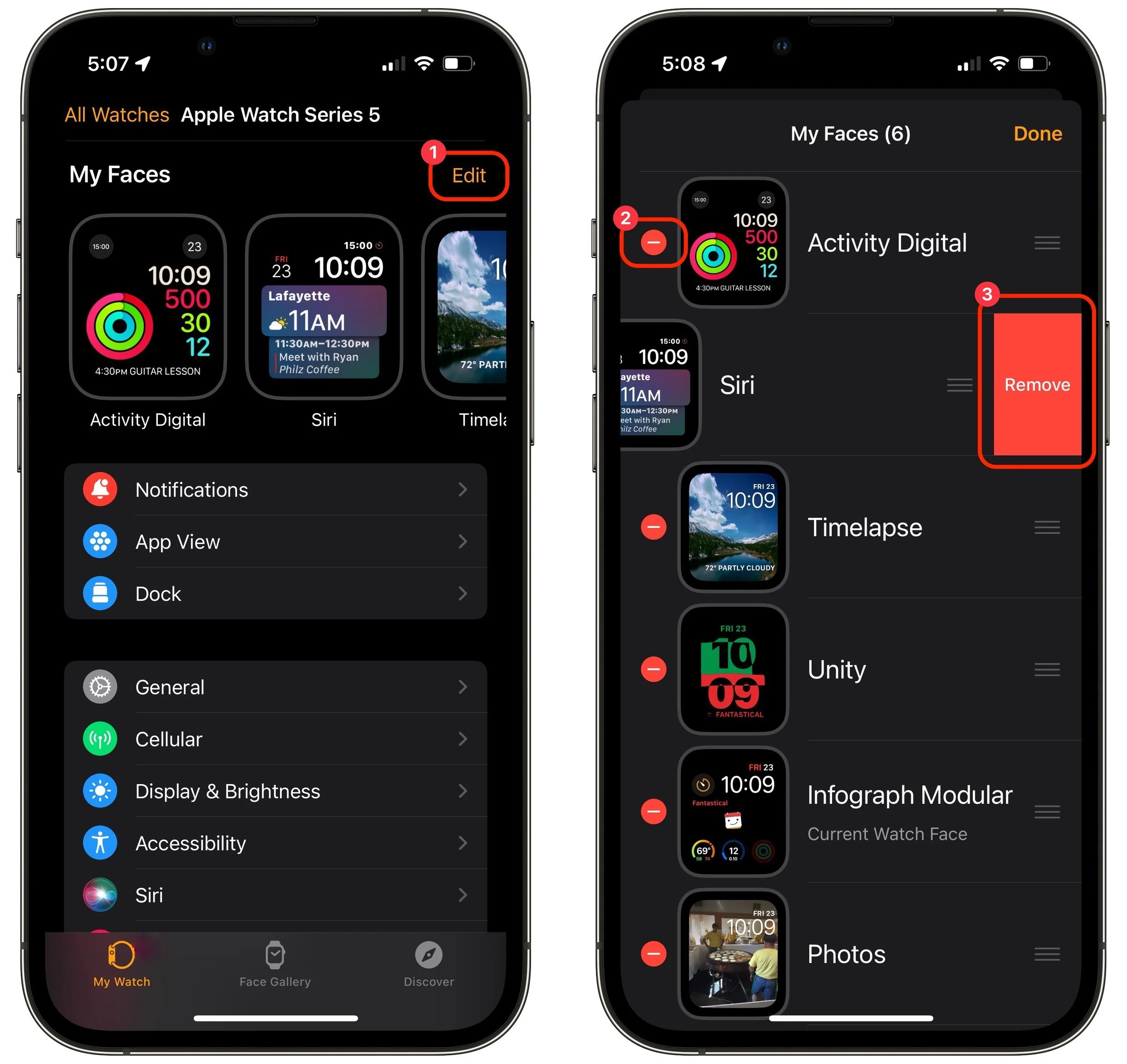
The Apple Watch has a lot to offer older people, including heart rate monitoring, atrial fibrillation detection, fall detection, and electrocardiogram recording. But if you are—or are helping someone who is—of the generation where watches once did nothing beyond telling the time, too many options can be overwhelming. Adding to the confusion is how easy it is to create and accidentally swipe between multiple watch faces, making it so the Apple Watch suddenly looks and works completely differently. If that’s an issue, use the Watch app to delete all but the preferred watch face. In Watch > My Watch, tap Edit to the right of My Faces ➊, tap the red delete button next to a face ➋, and then tap Remove ➌.

(Featured image by Adam Engst)

The Plug Is Mightier Than the Puck: Wireless Charging Is Wildly Inefficient

Lighting-cable-iPhone-photo.jpg

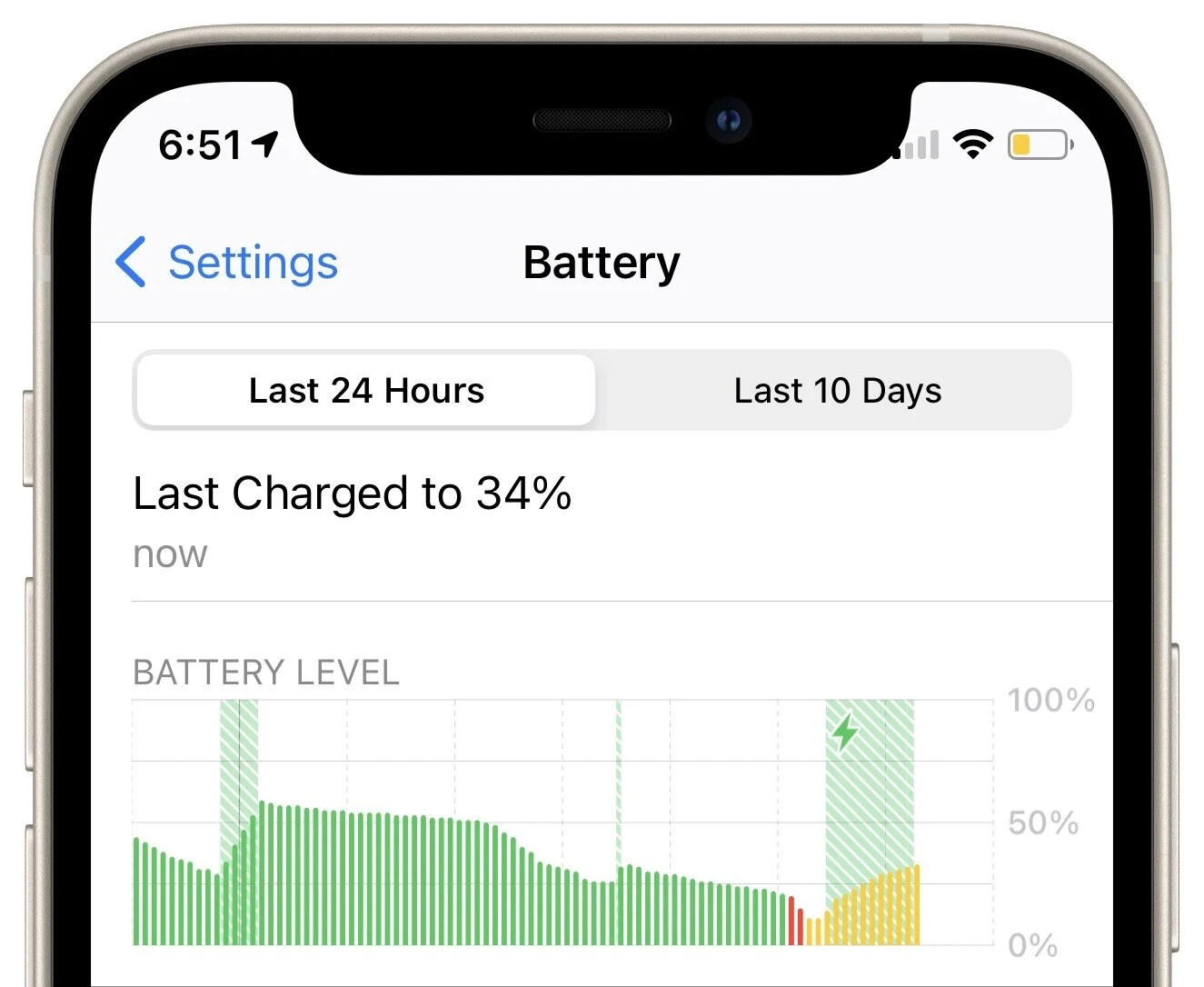
In 2017, Apple added support for Qi wireless charging to the iPhone 8 and iPhone X, and with the iPhone 12 lineup, it introduced its own MagSafe wireless charging technology. There’s no denying the convenience of wireless charging, but keep in mind that it’s extremely inefficient compared to wired charging. Individually, that may not matter much when you’re charging overnight from a wall-connected charger. But across billions of phones, it’s more problematic. One estimate suggests that wireless charging requires nearly 50% more power than cable. And if you’re charging from a wireless battery pack, wasting that juice means less of a top-up before exhausting the battery pack. Charging speed suffers too. In short, to charge your iPhone quickly and efficiently, whether from a wall-connected charger or a battery pack, stick with the traditional Lightning cable.

iPhone-Battery-graph.jpg

(Featured image by iStock.com/grinvalds)

Sort Your Lists Differently in Reminders in iOS 14 and Big Sur

Reminders-sorting-photo.jpg

For many years, Apple’s Reminders app let you sort your lists, but in just one way that applied to all lists equally. That was a problem if you had a to-do list that you wanted to sort by Due Date and a list of foods in your freezer that you wanted to sort by Creation Date (to see which were older) or Title (for a simple alphabetical sort). Happily, in iOS 14 and macOS 11 Big Sur, Apple finally addressed this limitation, letting you sort each list independently. Your choices even sync across all your devices! So if you had given up on sorting, or given up on Reminders entirely because of this limitation, on the Mac, check out the View > Sort By menu, and in iOS and iPadOS, tap the ••• button and then Sort By.

Reminders-Sort-By.png

(Featured image by iStock.com/fizkes)

Losing the Occasional Important Message? Set up a Ham Filter

cute-pig-photo.jpg

Although spam remains as much of a scourge as ever, spam filters have improved enough that most people see relatively little spam and lose relatively few legitimate messages (known as “ham”) to spam filters. However, good email messages are still sometimes caught by spam filters. To reduce the chance of missing an important message, consider making a “ham filter.” A ham filter looks for certain words—usually proper nouns—that are likely to appear only in legitimate messages and then marks such messages as Not Spam or moves them out of a Spam folder. (This capability is available in Gmail and can be emulated with multiple rules that you create in Apple’s Mail preferences, and likely in other systems as well; ask us about yours if you’re not sure.) Useful ham words include the name of your city, local high school or college names, club names or abbreviations, industry-specific terms, and any other words that are specific to your community or profession. Always test a possible ham word by first searching for it in your Spam folder to make sure it appears only in legitimate messages.

Ham-filter.png

(Featured image by iStock.com/Fotosmurf03)

About That Worrying Message Saying Your Password Has Been Breached…

iPhone-security-photo.jpg

In iOS 14, Apple added a feature that warns you when one of your website passwords stored in iCloud Keychain has appeared in a data breach. We’ve fielded some questions of late from people worrying if the message is legitimate, and if so, what they should do. What has happened is that online criminals have stolen username and password data from a company, and your credentials were included in that data breach. You should indeed change your password immediately, and it’s fine to let the iPhone suggest a strong password for you. Or, if it makes you feel more comfortable, you can usually change the password in Safari on your Mac instead. Either way, make sure it’s unique—never reuse passwords across multiple sites!

iPhone-password-breached.jpg

(Featured image by iStock.com/LumineImages)