With Apple Watch Faces, Too Much Choice Can Be Confusing

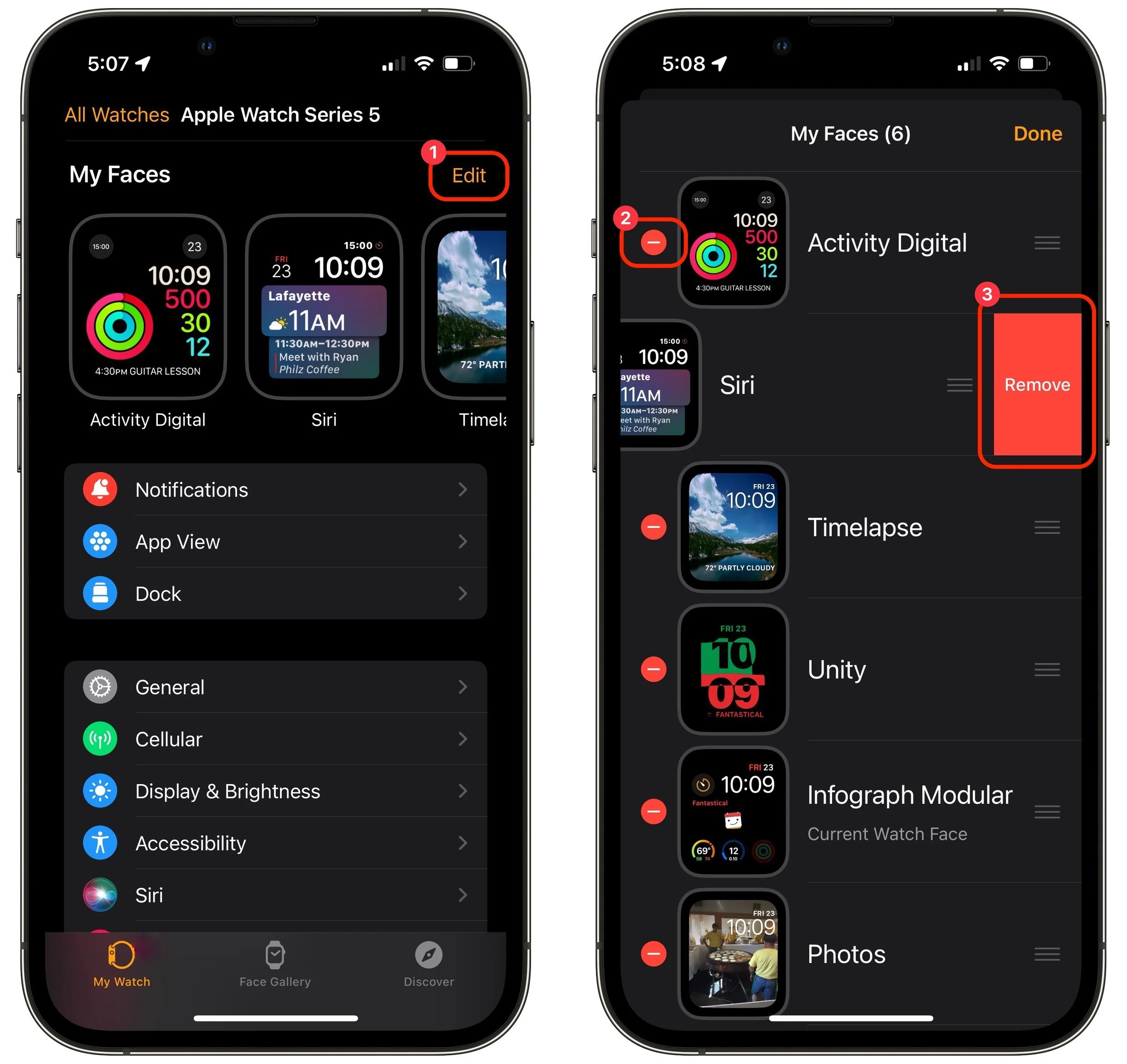
The Apple Watch has a lot to offer older people, including heart rate monitoring, atrial fibrillation detection, fall detection, and electrocardiogram recording. But if you are—or are helping someone who is—of the generation where watches once did nothing beyond telling the time, too many options can be overwhelming. Adding to the confusion is how easy it is to create and accidentally swipe between multiple watch faces, making it so the Apple Watch suddenly looks and works completely differently. If that’s an issue, use the Watch app to delete all but the preferred watch face. In Watch > My Watch, tap Edit to the right of My Faces ➊, tap the red delete button next to a face ➋, and then tap Remove ➌.
(Featured image by Adam Engst)

The Plug Is Mightier Than the Puck: Wireless Charging Is Wildly Inefficient

Lighting-cable-iPhone-photo.jpg

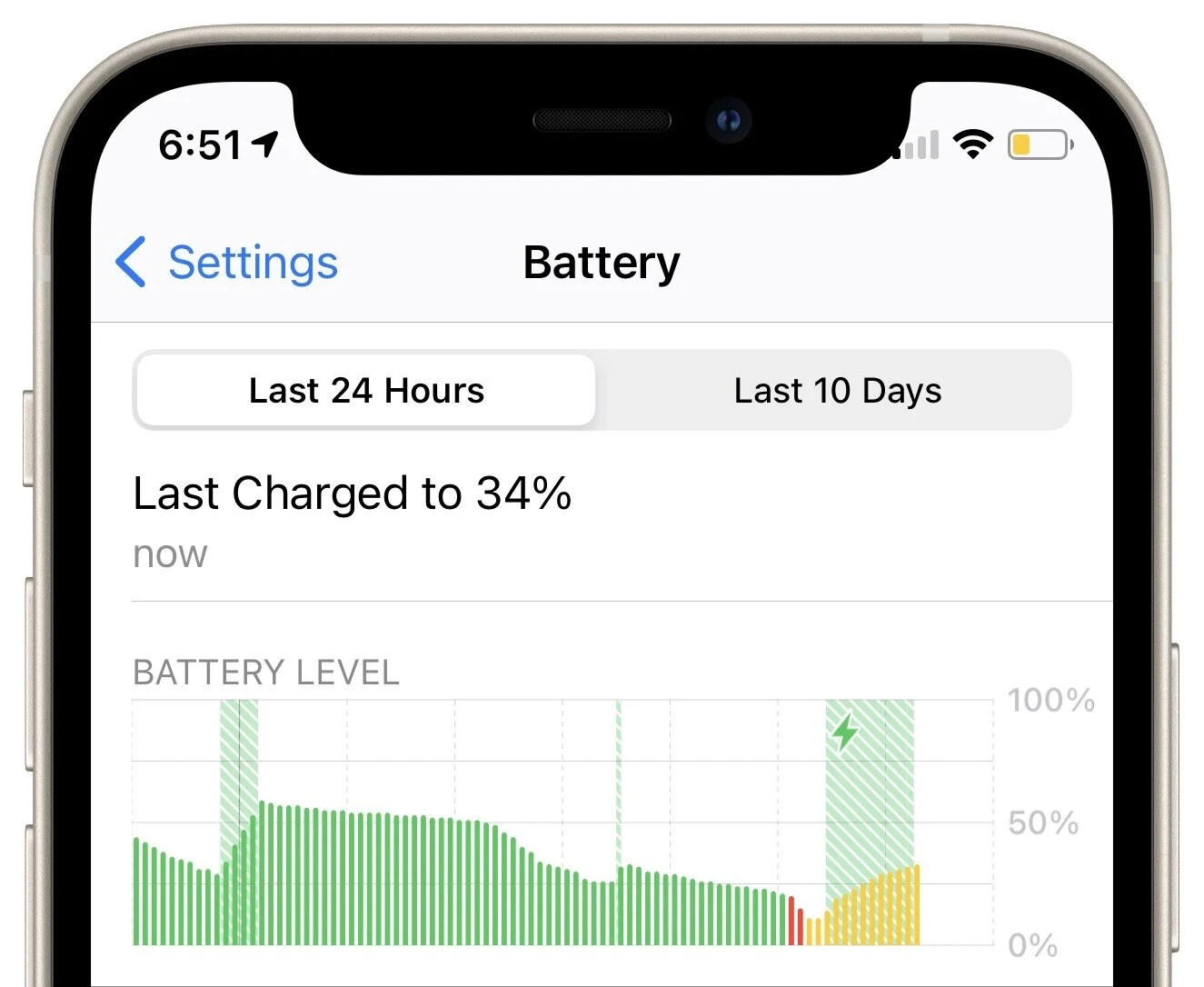
In 2017, Apple added support for Qi wireless charging to the iPhone 8 and iPhone X, and with the iPhone 12 lineup, it introduced its own MagSafe wireless charging technology. There’s no denying the convenience of wireless charging, but keep in mind that it’s extremely inefficient compared to wired charging. Individually, that may not matter much when you’re charging overnight from a wall-connected charger. But across billions of phones, it’s more problematic. One estimate suggests that wireless charging requires nearly 50% more power than cable. And if you’re charging from a wireless battery pack, wasting that juice means less of a top-up before exhausting the battery pack. Charging speed suffers too. In short, to charge your iPhone quickly and efficiently, whether from a wall-connected charger or a battery pack, stick with the traditional Lightning cable.

iPhone-Battery-graph.jpg

(Featured image by iStock.com/grinvalds)

Sort Your Lists Differently in Reminders in iOS 14 and Big Sur

Reminders-sorting-photo.jpg

For many years, Apple’s Reminders app let you sort your lists, but in just one way that applied to all lists equally. That was a problem if you had a to-do list that you wanted to sort by Due Date and a list of foods in your freezer that you wanted to sort by Creation Date (to see which were older) or Title (for a simple alphabetical sort). Happily, in iOS 14 and macOS 11 Big Sur, Apple finally addressed this limitation, letting you sort each list independently. Your choices even sync across all your devices! So if you had given up on sorting, or given up on Reminders entirely because of this limitation, on the Mac, check out the View > Sort By menu, and in iOS and iPadOS, tap the ••• button and then Sort By.

Reminders-Sort-By.png

(Featured image by iStock.com/fizkes)

Losing the Occasional Important Message? Set up a Ham Filter

cute-pig-photo.jpg

Although spam remains as much of a scourge as ever, spam filters have improved enough that most people see relatively little spam and lose relatively few legitimate messages (known as “ham”) to spam filters. However, good email messages are still sometimes caught by spam filters. To reduce the chance of missing an important message, consider making a “ham filter.” A ham filter looks for certain words—usually proper nouns—that are likely to appear only in legitimate messages and then marks such messages as Not Spam or moves them out of a Spam folder. (This capability is available in Gmail and can be emulated with multiple rules that you create in Apple’s Mail preferences, and likely in other systems as well; ask us about yours if you’re not sure.) Useful ham words include the name of your city, local high school or college names, club names or abbreviations, industry-specific terms, and any other words that are specific to your community or profession. Always test a possible ham word by first searching for it in your Spam folder to make sure it appears only in legitimate messages.

Ham-filter.png

(Featured image by iStock.com/Fotosmurf03)

About That Worrying Message Saying Your Password Has Been Breached…

iPhone-security-photo.jpg

In iOS 14, Apple added a feature that warns you when one of your website passwords stored in iCloud Keychain has appeared in a data breach. We’ve fielded some questions of late from people worrying if the message is legitimate, and if so, what they should do. What has happened is that online criminals have stolen username and password data from a company, and your credentials were included in that data breach. You should indeed change your password immediately, and it’s fine to let the iPhone suggest a strong password for you. Or, if it makes you feel more comfortable, you can usually change the password in Safari on your Mac instead. Either way, make sure it’s unique—never reuse passwords across multiple sites!

iPhone-password-breached.jpg

(Featured image by iStock.com/LumineImages)

Ever Have Trouble Printing? Try a Different Printer Driver

HP-printer-photo.jpg

Some clients have reported problems with HP laser printers failing to print. Sometimes there’s an error. Other times, the print job just disappears into the ether. It’s unclear why this is happening or how widespread it is, but here’s a workaround that can help. Create a new printer configuration by clicking the + button in System Preferences > Printers & Scanners and selecting your printer in the list. Then, from the Use pop-up menu, choose something other than the default Secure AirPrint driver. We’ve had the most luck with Generic PostScript Printer. Both the old and new configurations will be available when printing, so if one doesn’t work, try again with the other one.

Configure-printer-driver.png

(Featured image by Mahrous Houses on Unsplash)

Filter What’s Showing in Photos to Focus on Specific Types

Photos-filtered-photo.jpg

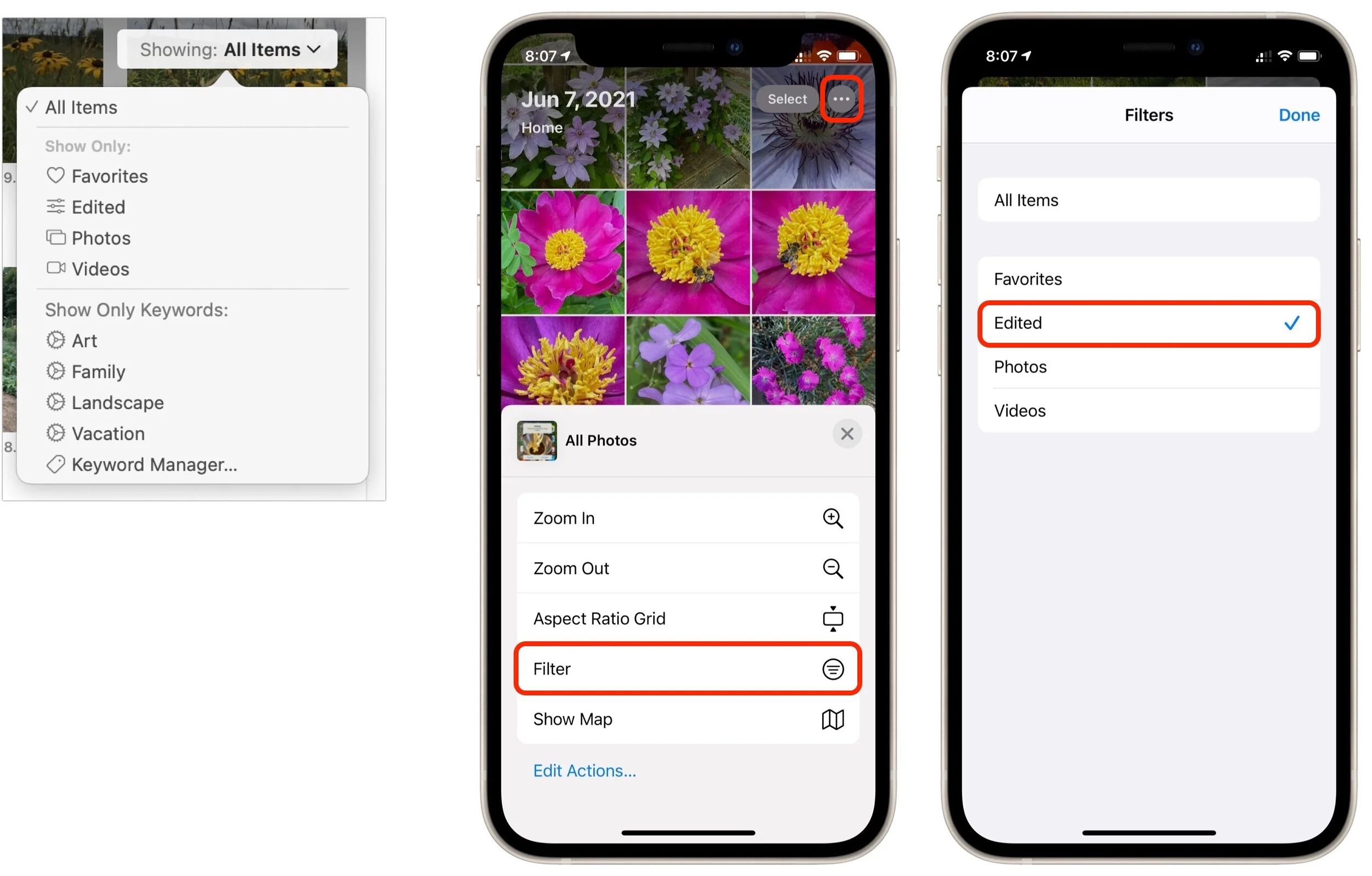
You know you can make albums and smart albums in Photos, and do searches to find photos that contain particular objects. But what if you want to separate photos from videos, identify which images in an album have been edited, or pick out just the ones you’ve favorited? For that, use Photos’ filters. On the Mac (below left), click the Showing menu in the upper-right corner, and in iOS and iPadOS (iPhone screens below right), tap the ••• button in the upper-right corner and tap Filter. Either way, you can choose Favorites, Edited, Photos, or Videos to limit the items showing to that type. When you’re done, turn the filter off by choosing All Items.

Photos-filters.jpg

(Featured image by iStock.com/metamorworks)

The Mac’s Magic Shortcut to Trashing Files and Photos Quickly

Command-Delete-photo.jpg

Sure, you could select a file in the Finder and choose File > Move to Trash or drag it to the Trash in the Dock. Similarly, you can trash selected photos in Apple’s Photos app by choosing Image > Delete X Photos, or by pressing the Delete key, but both of those methods result in a dialog asking if you’re sure. The easiest way of trashing a file in the Finder or a picture in Photos is to select it and press Command-Delete. Poof, it’s in the Trash (Finder) or Recently Deleted album (Photos), with no extra effort or prompts! And if you accidentally trash the wrong thing, just press Command-Z to restore it. Keep this key combination in mind for other apps too, since they may also support it as a shortcut for “delete without prompting.”

Command-Delete-shortcut.png

(Featured image by iStock.com/YurolaitsAlbert)